UI Response#
The UI Response element is used to display UI elements inside the generated document (PDF).
Within the Flow Designer, you can choose which UI elements should be shown or hidden.
See: Template Designer
Tolerance Element Settings#
When using UI elements that include tolerance values (e.g., measurement ranges), the following display settings are available:
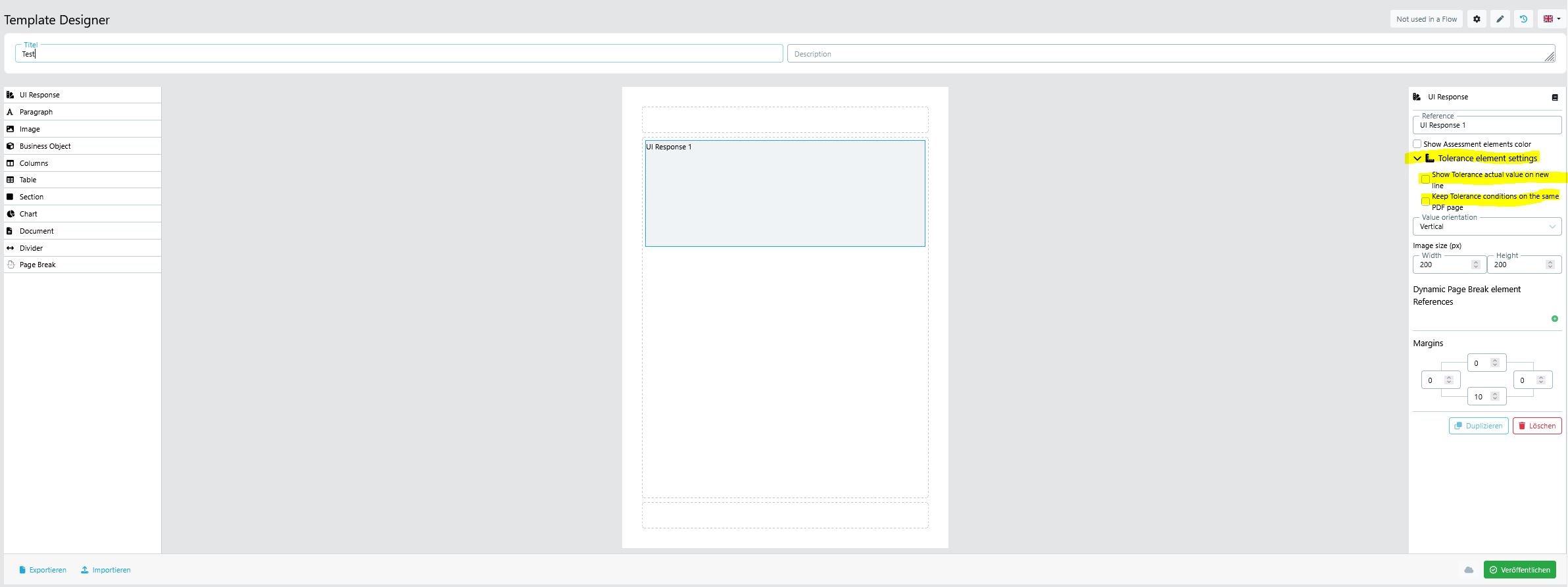
1) Show Tolerance actual value on new line#
- What it does:
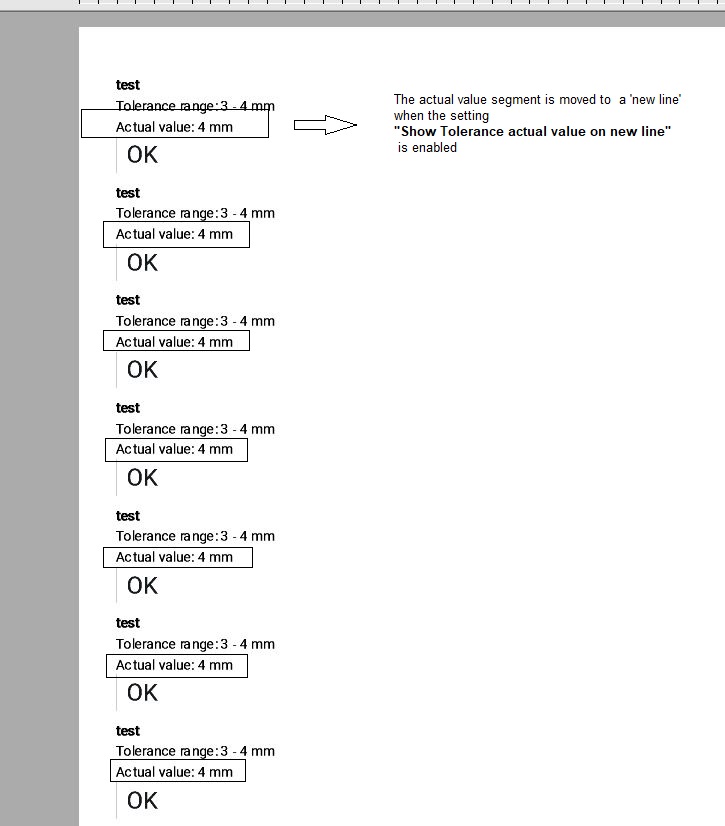
When enabled, the actual measured value is rendered on a separate line beneath the tolerance condition in the generated PDF.
Example:
2) Keep Tolerance conditions on the same PDF page#
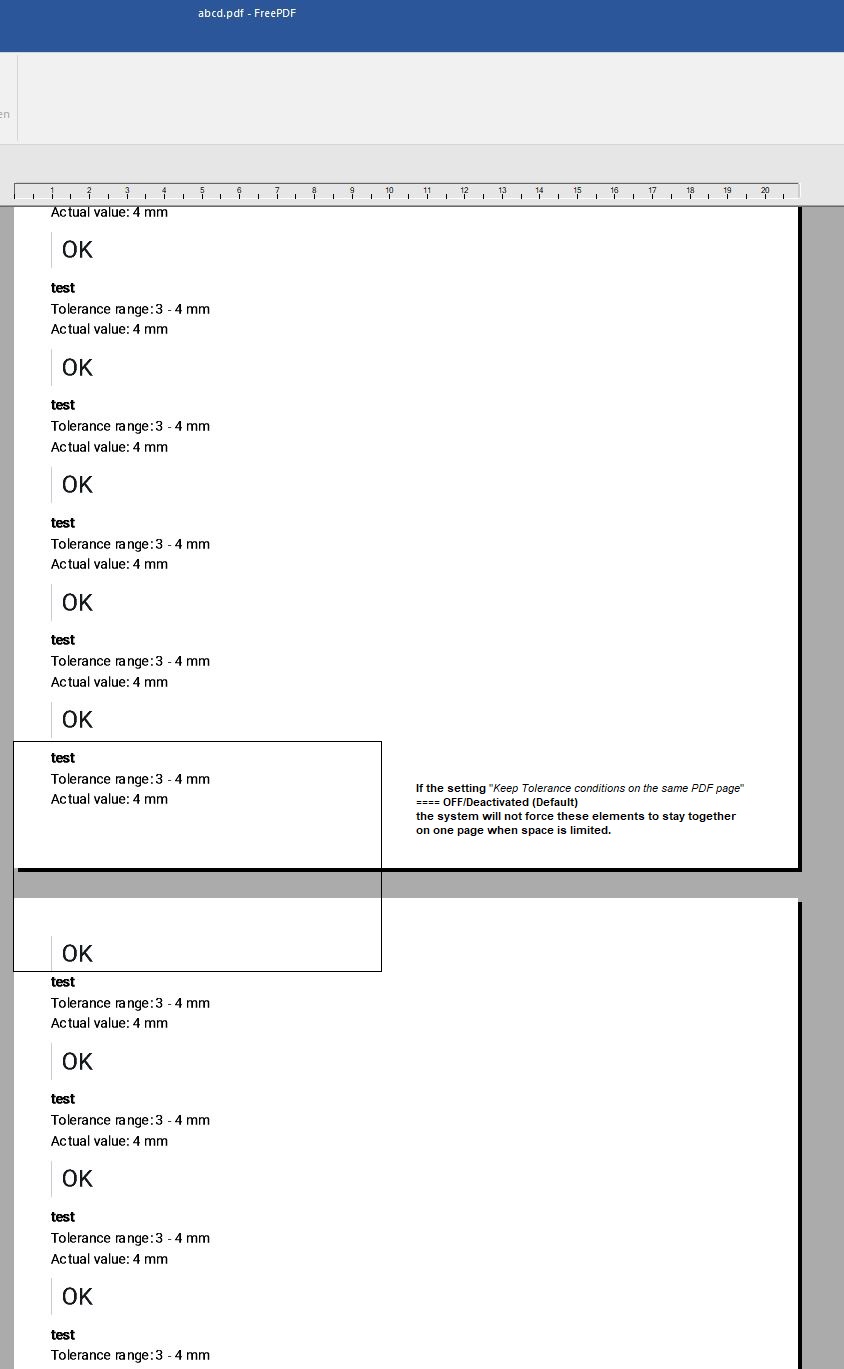
When Disabled (default):
If OFF, the tolerance condition and its related values (e.g., tolerance range and the actual value) may continue on the next page if there isn’t enough space left on the current page.
Example (Disabled):
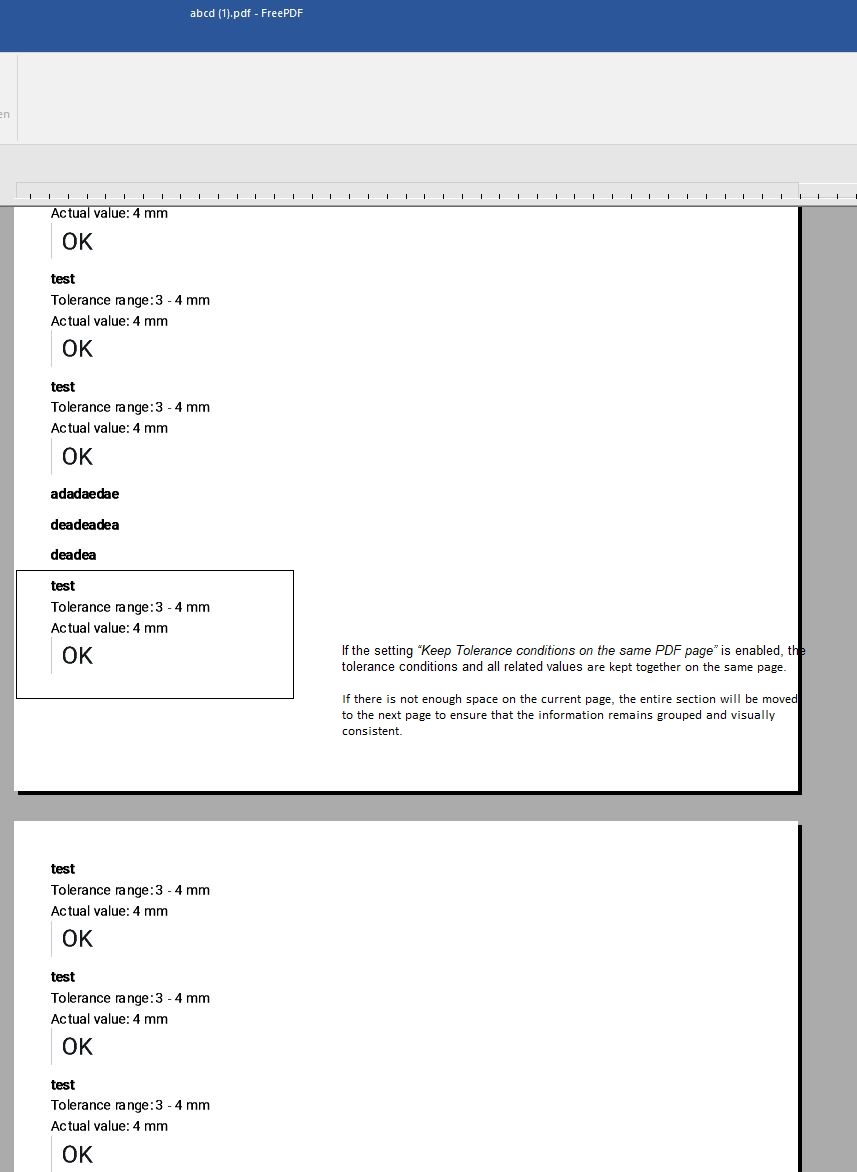
When Enabled:
If ON, the entire tolerance block (label, range, and actual value) is kept together on the same page. If there isn’t enough space, the whole block moves to the next page to remain grouped.
Example (Enabled):
These options help maintain clarity and visual consistency for tolerance-related information in the generated document.
Additional settings (Paged mode only)#
The following settings are only available when the template is set to Paged mode. See Paged Templates for more information on what Paged mode is.
Hide nominal value for tolerance elements#
When enabled, the nominal/reference value is hidden and only the tolerance range and actual value are shown in the document.
Tolerance deviation display#
Controls how deviation is shown alongside the tolerance value. Options: Deviation (default) or other available display formats.
Tolerance inline separator spaces#
Sets the number of spaces used as a separator between the value and its deviation when displayed inline on the same line.
Hide dynamic page break dividers in DOCX#
When enabled, the visual dividers that mark dynamic page breaks are hidden in the exported DOCX file.
Show all selection options#
When enabled, all available options of a Selection element are listed in the document — not just the selected one.
Pair camera images in two-column layout#
When enabled, camera images captured in the form are arranged side by side in a two-column layout in the exported document instead of stacking them vertically.