Checklists#
A checklist defines what an audit asks. It holds sections and their questions, the planning rules that place it on the calendar, and its published revisions.
The list#
| Column | Content |
|---|---|
| Checklist | The title, with a DRAFT badge when no revision has been published. |
| Management system | The management system it belongs to, or All. |
| Org unit | The unit it was built for, or All. |
| Sections | Number of sections. |
| Items | Number of questions. |
Filter the list by management system or org unit. When drafts exist, a banner above the table states how many there are and what a draft cannot do.
| Action | Result |
|---|---|
| + New checklist | Opens an empty designer. |
| ⚡ Auto-create | Assembles a checklist from the question bank. |
| Edit, or select a row | Opens the designer for that checklist. |
| Delete | Moves the checklist to the Trash. |
Auto-create#
| Field | Purpose |
|---|---|
| Management system | Restricts which bank questions are used. |
| Org unit | Restricts which bank questions are used. |
| How to pick | In order takes matching questions in bank order. Random picks at random. |
| Sections | How many sections to create. |
| Items per section | How many questions per section. |
The dialog reports how many bank questions match before you generate. The result is an ordinary checklist that can be edited in the designer.
The designer#
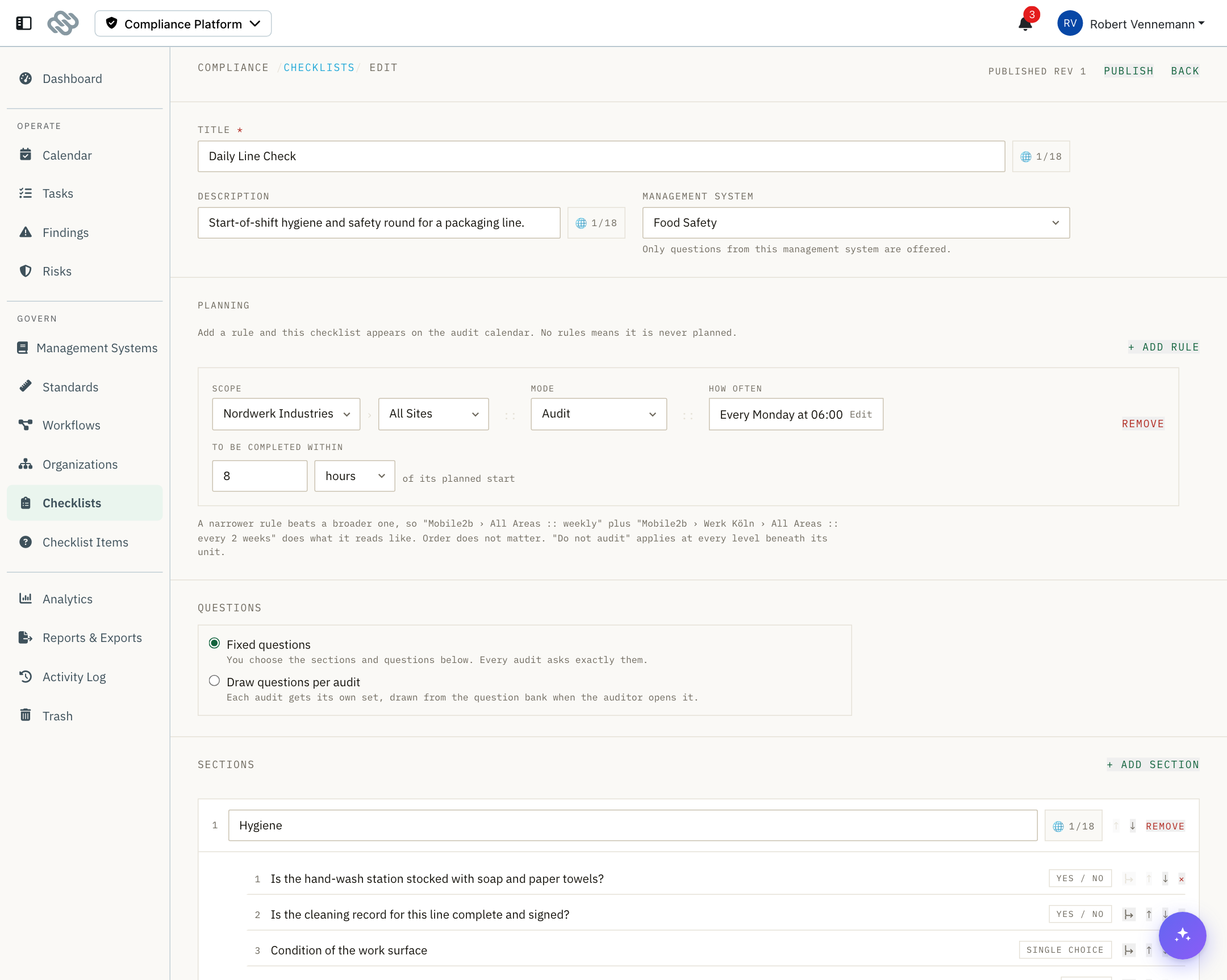
Basics#
| Field | Notes |
|---|---|
| Title | Required. Multi-language, see Multi-language content. |
| Description | Optional. |
| Management system | Required. Determines the standard and severity scale used for grading, resolves the auditor, and restricts which bank questions the section pickers offer. |
An audit covering several standards is built as one checklist per management system.
Sections and questions#
- Select Add section and enter a title.
- Use the section's question picker to add questions from the bank.
- Use the up and down arrows to reorder sections and questions.
- Select × to remove a question from the checklist. The question stays in the bank.
- Select Remove on a section header to delete the section.
Sections can be nested to create subsections.
If you change the management system after adding questions, questions that no longer match are marked out of scope and kept. Remove them or change the management system back.
Conditional questions#
A question can be shown or hidden based on the answer to an earlier question.
Select the branch icon on a question row, then set:
- Show when or Hide when
- The question to watch
- is the answer to compare against
Select + Another condition to add more rules to the same question, and × to remove one.
Behavior:
| Rule | Effect |
|---|---|
| Rules are read top to bottom | The first rule that matches decides. |
| A question with at least one Show rule | Hidden unless a rule matches. |
| A question with only Hide rules | Visible unless a rule matches. |
| Two rules that can both apply with opposite actions | Marked as conflicting. The first one applies. |
| A rule that is incomplete, or watches a question that no longer comes earlier | Marked incomplete and not saved. |
A hidden question is not shown during the audit. It is kept in the record as not asked.
Fixed questions or drawn questions#
| Mode | Behavior |
|---|---|
| Fixed questions | The authored sections are asked, unchanged, every audit. |
| Draw questions per audit | The authored sections are ignored. Each audit draws its own question set from the bank. |
When drawing, set:
| Field | Options |
|---|---|
| How drawn | Rotating asks the least-asked questions first, so every question is asked once before any is asked twice at that location. Ties are broken at random. Random draws freely each time. |
| Sections | How many sections to draw. |
| Questions per section | How many questions per section. |
The pool is the set of bank questions matching the checklist's management system and the org unit of the audit being drawn, so the same checklist draws unit-relevant questions at each location.
The designer counts the pool and reports when the draw is larger than the pool.
Planning rules#
Planning rules place the checklist on the calendar. Dates are not entered anywhere; the calendar derives them from these rules.
Select Add rule and set:
| Field | Content |
|---|---|
| Scope | Two selects that read as a path. The first is the anchor unit, the second is the level to audit at, for example "Nordwerk Industries › All Sites". |
| Mode | Audit includes the scope. Do not audit excludes it, and applies at every level beneath its unit. |
| How often | The cadence, shown as a sentence such as "Every Monday at 06:00". Select Edit to open the recurrence editor, which supports patterns such as "every 2 weeks on Thursday" and "first Monday of the quarter". Required for Audit. |
| To be completed within | How long the audit is owed for, measured from its planned start, in minutes, hours or days. Leave blank for the end of the planned day. |
Select Remove to delete a rule.
Overlap resolution#
Where rules overlap, the rule anchored nearest the audited unit applies. A rule with no anchor is the weakest. An exclude rule takes part in the same resolution, so a site can be excluded while one area inside it is included. The order of the rows in the designer does not affect resolution.
To be completed within is a window, not a duration
It sets how long the audit remains due, not how long the work takes. A twenty-minute shift check that is owed for a whole eight-hour shift should be set to eight hours.
Publishing#
Edits take effect for audits only when a revision is published.
The header shows the current state: never published, published with a revision number, or draft with unpublished changes.
To publish:
- Select Publish.
- Optionally describe what changed.
- Confirm.
The revision is frozen. An audit binds to the revision that was live when it was created, and keeps those questions in its record.
A draft checklist is inactive
It cannot be selected for an audit, and its planning rules produce no calendar entries. The designer shows a banner until the first revision is published.
Change log#
The bottom of the designer lists every revision with its number, who published it, when, and the note. The current revision is marked live.
Notes and limits#
- A question can appear only once per checklist. After it is placed in one section, the picker no longer offers it in the others.
- Conditions watch one earlier Yes / No or single choice question, matched to one exact answer. Reordering questions can invalidate a condition, which is then marked incomplete and not saved.
- A published revision cannot be withdrawn. To revert, edit the checklist back and publish a new revision.
- Drawing mode ignores the authored sections while it is active. They are kept, not deleted.