Running an Audit#
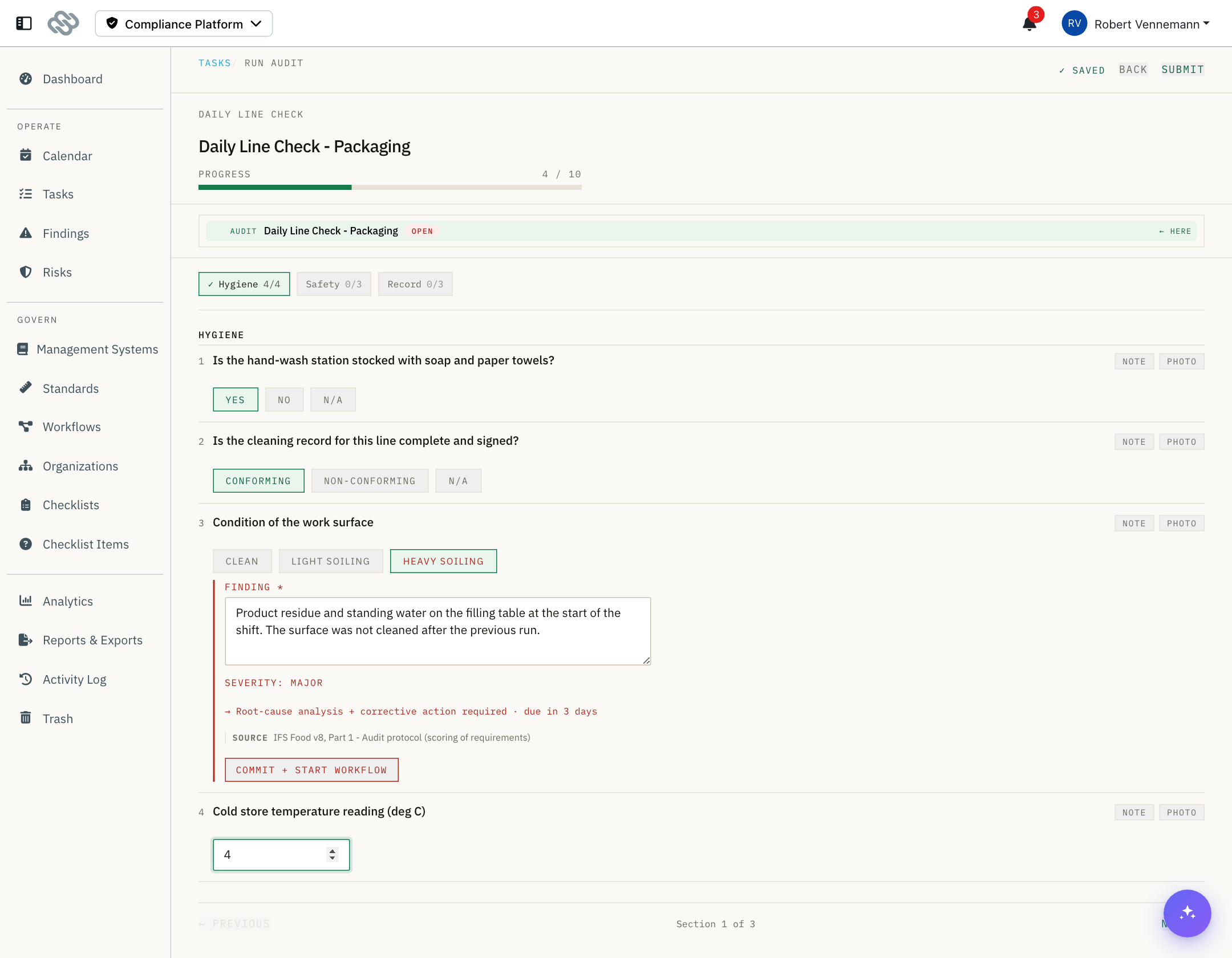
The audit runner is the execution screen for an audit task. It works on a phone, a tablet and a desktop.
Open it from Tasks with Start on an open audit, or Resume on one in progress.
The audit runs against the checklist revision that was live when the audit was created.
Header#
| Element | Purpose |
|---|---|
| Progress | Questions answered out of the total. |
| Save status | Answers are saved automatically as they are entered. |
| Back | Returns to the task list. |
| Submit | Finalizes the audit. |
Moving through the checklist#
One top-level section is shown per page.
For a checklist with more than one section, a chip row at the top holds one chip per section with its own progress. Select a chip to jump to that section.
| Marker | Meaning |
|---|---|
| ✓ | Every question in the section is answered. |
| ! | The section still owes a required finding. |
Previous and Next below the questions move between sections.
Answering#
| Type | Control |
|---|---|
| Yes / No | Three chips. Select the chosen chip again to clear the answer. |
| Score | A number field, 0 to 10. |
| Number | A number field. |
| Text | A text area. |
| Single choice | One chip per option. Select the chosen chip again to clear the answer. |
| Photo | A camera tile and an optional caption field. |
| Timestamp | A Stamp now button, then Stamp again to replace the value. The value comes from the server clock. |
Reference photos configured on the question appear above the answer under Reference. Select one to enlarge it.
Help text configured on the question appears beneath the question text.
Questions hidden by the checklist's conditions are not displayed. They are kept in the record as not asked.
Evidence#
Each question has two evidence controls next to the question text:
| Control | Purpose |
|---|---|
| Note | A free-text observation. |
| Photo | Opens the camera on a phone, or the file picker on a desktop. |
Both buttons are highlighted when that question already holds evidence.
Photos are resized and uploaded automatically. Select a thumbnail to enlarge it, and ✕ on a thumbnail to remove it.
Up to 8 photos per question. A Photo question uses its own capture control and has no separate photo button.
Findings#
When an answer matches a non-conformance rule on the question, a finding panel opens beneath it.
Enter the description of the non-conformity.
The panel also states, read-only:
| Element | Source |
|---|---|
| Severity | The grade set by the question's non-conformance rule. |
| KO badge | Shown when the grade is a knock-out. |
| Requirement | The clause the question checks, inherited from the checklist item. |
| Consequence | What the standard requires for that grade, with its clause. |
An asterisk marks a finding that is required. The audit cannot be submitted until such a finding is described.
The grade is stated rather than chosen, so the same answer produces the same grade at every site and with every auditor. If a grade is wrong for your process, change the question's non-conformance rule rather than the finding. See Checklist items.
If the management system has no severity scale, the finding is captured without a grade, a deadline or a corrective workflow. An information icon in the finding header states this.
If a matched rule names no grade, or names a grade the scale no longer holds, the panel reports the severity as unresolved.
Draft the description from keywords#
When your account has an AI provider connected, a Draft finding button sits beneath the description field.
Note what you saw in a few words, then select Draft finding. The platform writes the finding for you.
Keywords are enough. Oil leak pump 3, floor slippery is a complete input.
The button is disabled until the field holds something. The platform never writes a finding from an empty field, because it would have to invent the observation.
You are not the only source the draft uses. The platform also reads:
| Source | Used for |
|---|---|
| The question | What was being checked. |
| The requirement | The clause the question cites. |
| Your answer | What was recorded, and the grade the rule assigned. |
| The organizational unit | The site, area or line you are auditing. |
| Earlier findings on this question | The wording your own team uses for this check. |
The draft replaces the text in the field and is marked AI draft while it is still unchanged:
| Action | Result |
|---|---|
| Keep | Accepts the wording. The marker clears. |
| Undo | Restores your keywords. The draft is discarded. |
| Editing the text | Keeps the draft with your corrections. The marker clears. |
Read the draft before you keep it. The finding is the record a certifier reads, and it is yours, not the platform's.
The platform records which drafts your auditors keep and how they rewrite the ones they change. It uses those kept findings as the house style for the same question in future audits, so the drafts read more like your own team's wording over time.
What the draft never does:
- It does not set or change the grade. The grade comes from the question's non-conformance rule.
- It does not propose a corrective action. That belongs to the CAPA route and its owner.
- It does not analyze the root cause. That belongs to the root-cause task.
- It does not add facts. It works from your keywords and the context above.
If your account has no AI provider, the button is not shown. See Connect an AI provider.
Earlier findings on this question#
Beneath the grade, the panel lists findings raised on the same question before, anywhere in your organization, within the last 24 months.
This answers the question a certifier asks and an auditor cannot answer from memory: has this happened before, and did the last corrective action work?
The panel has two states, and the heading states which one you are reading:
| Heading | Meaning |
|---|---|
| This question has failed n time(s) before | The full history of the question. No description has been written yet, or no AI provider is connected. |
| Repeat deviation: n earlier finding(s), n location(s) | Of that history, the findings that describe the same deviation as the one you are writing now. |
The second state needs an AI provider, and appears once your description is long enough to compare against. Entries judged to be the same deviation are marked with a red edge and carry a short reason.
Each entry shows the case reference, the location, the date, the grade and the recorded description. The panel is a reference only. Nothing in it changes the finding you are writing.
A repeat deviation is worth grading and describing carefully. Under IFS and IATF, a deviation that recurs is evidence that the previous corrective action was not effective, which is a heavier matter than the deviation itself.
Commit a finding during the audit#
Select Commit + start workflow to start the finding's corrective route immediately, before the audit is submitted. Its CAPA tasks are created and assigned at that moment.
A committed finding is locked. Its description and grade can no longer be changed, and the panel shows a Committed marker.
Findings that are not committed start their workflows when the audit is submitted.
Case tree#
Beneath the header, the case navigator shows the findings and corrective work that stem from this audit. It updates as findings are committed.
Submitting#
Select Submit audit at the end of the run, or Submit in the header.
If questions are unanswered, a confirmation dialog states how many before continuing.
On submission:
- Findings that were not committed start their corrective workflows.
- The audit becomes read-only.
To review a completed audit, open it from Tasks with View results.
Notes and limits#
- No offline mode. The runner needs a connection; answers are saved as they are entered.
- Up to 8 photos per question. Evidence is a note plus photos, with no audio, video or document attachments.
- Answers cannot be corrected after submission, including data-entry errors. Corrections run through the findings and their corrective actions.
- AI drafting and the earlier-findings panel need an AI provider connected. Without one, the Draft finding button is not shown.
- Earlier findings are matched by the same question, reach back 24 months, and list at most 15.