Views#
Views or Business Object Views provide different visualization of Business Objects.
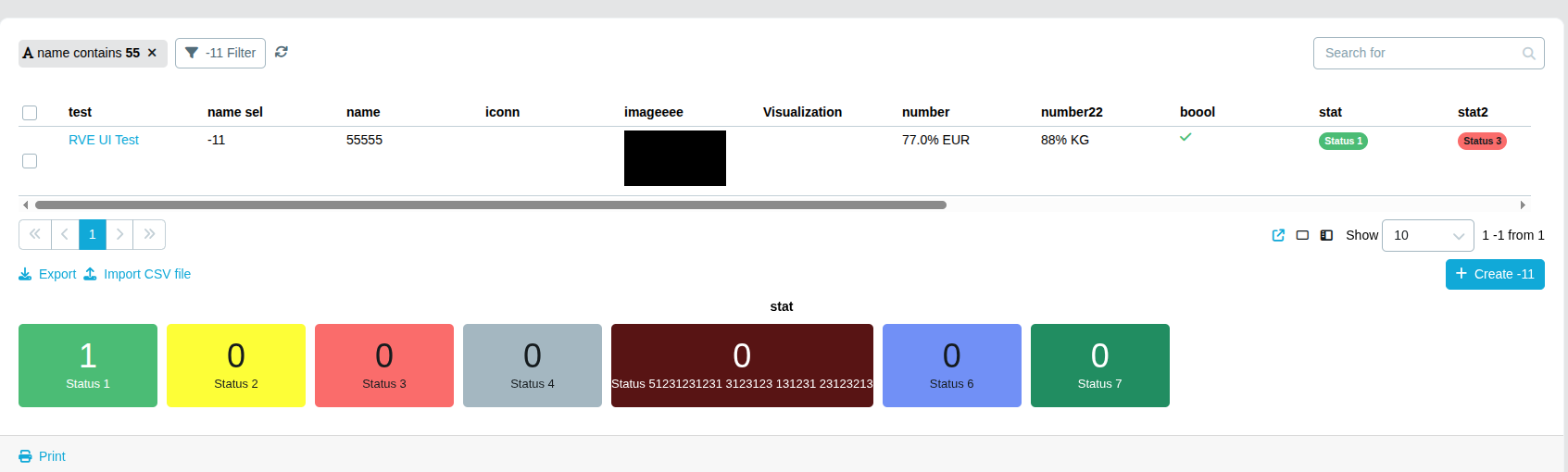
You can have a single view or combine multiple views into one view. For example you can have only a Table or you can have a Map next to a Status Dashboard
Note: The filters will be applied to all sub-views
Types#
- Table
- Board
- Calendar
- Hierarchical
- Timeline
- KPI
- Pivot Table
- Distribution
- Scatter Chart
- Map
- Visualization
- Status Dashboard
- Pareto Chart
Hierarchical View#
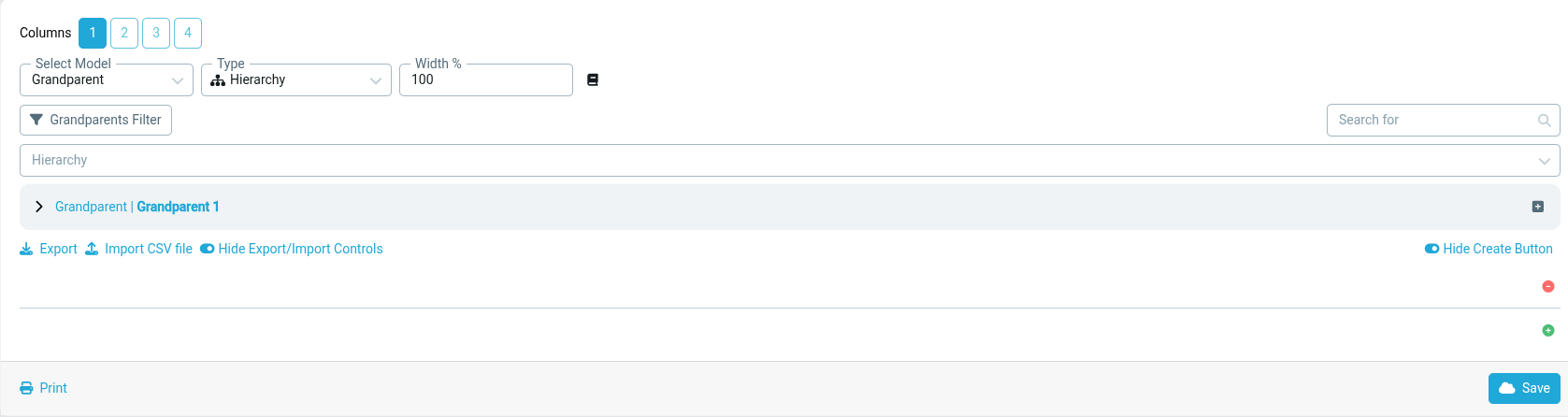
The Hierarchical view displays Business Objects in a parent-child structure so records can be explored in their hierarchy instead of a flat list.
Sharing#
As the Owner of a view, you can share it with others. You can share a view with your entire organization, individual users, or a group of users. When sharing a view, you can set a specific role for each user or group of users that you want to share a view with:
- A Viewer can see and interact with the view but cannot change it.
- An Editor can see and interact with the view and can also change it. If an editor changes a view, it will be changed for everyone else who also has access to this view.
- An Owner is the original creator of a view and the only one who can change share settings and delete the View.
Favorites#
You can add a View to your Favorites by clicking on the start button.
When a View is added to Favorites it will be shown in the side menu.
You can reorder your Favorite Views by drag and drop in the side menu.
Hide/Show Import/Export controls#
The controls refer to

Could be enabled/disabled through the toggle button next to the controls in Edit mode:
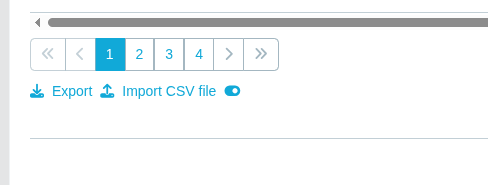
When these controls are visible, users with create permission for the underlying model can also use Import CSV file from the same control area. For the upload flow and the encoding warning modal, see CSV Import.
Hide/Show Create Button#
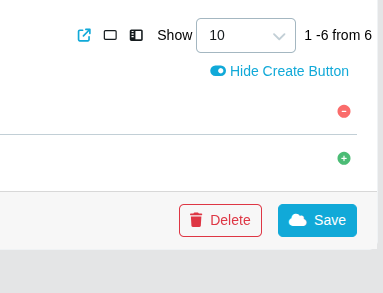
On a per view basis, you can display/hide the create button using this toggle in Edit mode:
Merge Controls for Same Models#
It could be located below the Name of the view while in editing mode and inherits the filters in all sub-views pointing to the same model.

When the option is false - it puts the controls for each sub-view#
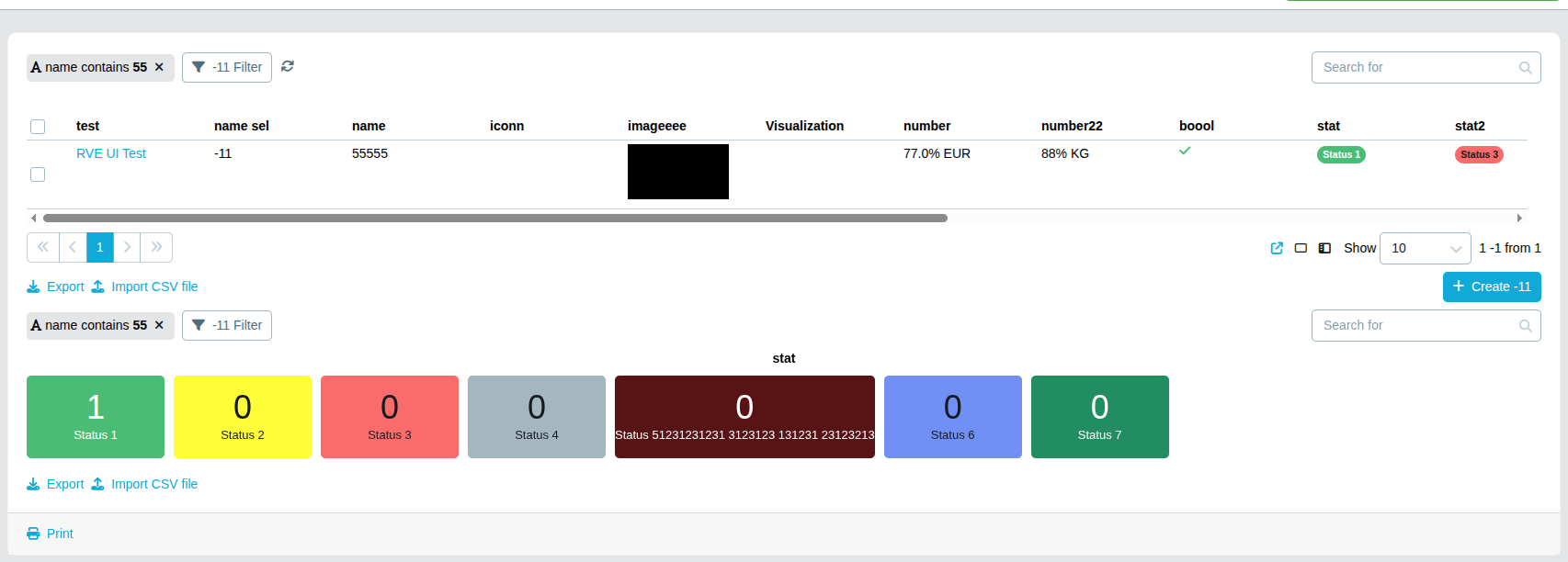
When the option is true - it removes the controls for each sub-view that points to the same model as the first occurrence and inherits from it#
Selection Labels and Icons#
Selection rows and columns can display both the configured label and icon so users can identify values more quickly in a view.
