Business Objects#
Business Objects are the operational data records of a Business Model. In practice, they are the items your users create, edit, assign, search, filter, archive, and process in the application.
Typical examples are tickets, audits, machines, tasks, customers, projects, or any custom entity defined in the Model Designer.
What a Business Object Contains#
Each Business Object belongs to exactly one Business Model and usually contains:
- Standard metadata such as creation and update timestamps.
- A display value used in lists, relations, and lookups.
- Custom properties defined in the Model Designer.
- Optional access rules, notifications, documents, and relations to other Business Objects.
Typical User Operations#
Depending on your permissions and the model configuration, users can typically:
- Create new Business Objects.
- Open and edit existing Business Objects.
- Search, sort, and filter object lists.
- Trigger object-specific Actions.
- Duplicate objects.
- Delete objects and restore them from the trash.
Create and Edit#
Business Objects are created inside a Business Model. The exact create form depends on the properties configured for that model.
When editing a Business Object, users can usually:
- Change property values.
- Set or update relations to other objects.
- Upload or link related documents.
- Trigger configured automations or validations.
Whether a user is allowed to create, view, edit, or delete an object depends on both role permissions and object-level Access Rights.
CSV Import#
Business Objects can also be created in bulk from a CSV file.
The Import CSV file action is available in the footer of the object list when both of the following are true:
- The current View shows the import and export controls.
- The user has permission to create objects for the selected Business Model.
Import Flow#
- Open the relevant Business Object list or View.
- Click Import CSV file.
- Select the CSV file from your device.
- After a successful import, the application opens the import result page for that model.
For best results, save the CSV file in UTF-8 encoding before uploading it.
Encoding Warning Modal#
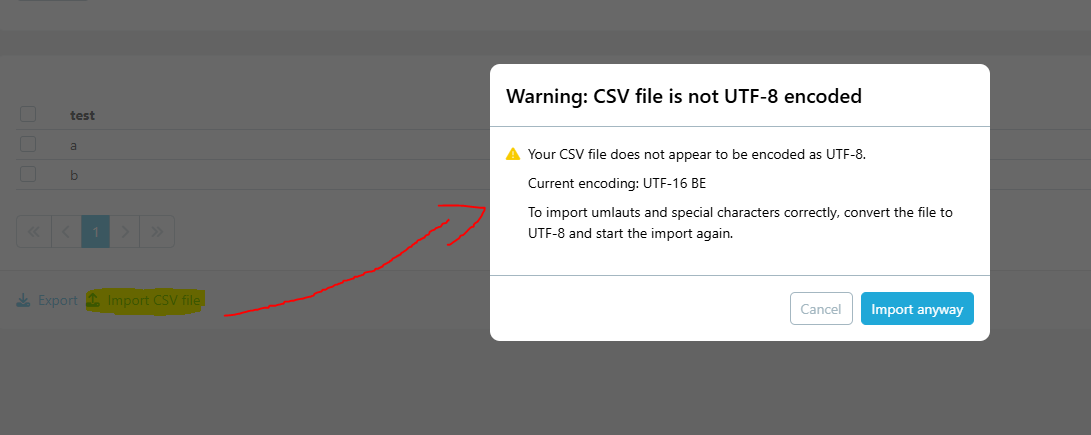
If the selected CSV file is not encoded as UTF-8, the system shows a warning modal before the import continues.
The modal:
- tells the user that the file is not UTF-8 encoded,
- shows the detected encoding,
- recommends converting the file to UTF-8,
- allows the user to cancel or continue with Import anyway.
Importing a file with a different encoding can lead to incorrect umlauts or other special characters in the imported data.
Retention, Scale, and Fair Usage#
Business Objects remain in the system until they are deleted manually or until retention and deletion rules have been configured.
If your organization requires automatic deletion after a defined period, see Data Protection Settings.
There is no predefined fixed limit for the number of Business Models or Business Objects.
Mobile2b follows a fair usage approach. If data volume or system load grows significantly beyond typical usage, we will align with you on an appropriate solution.
Delete, Trash, and Restore#
Deleting a Business Object does not immediately remove it permanently from the system.
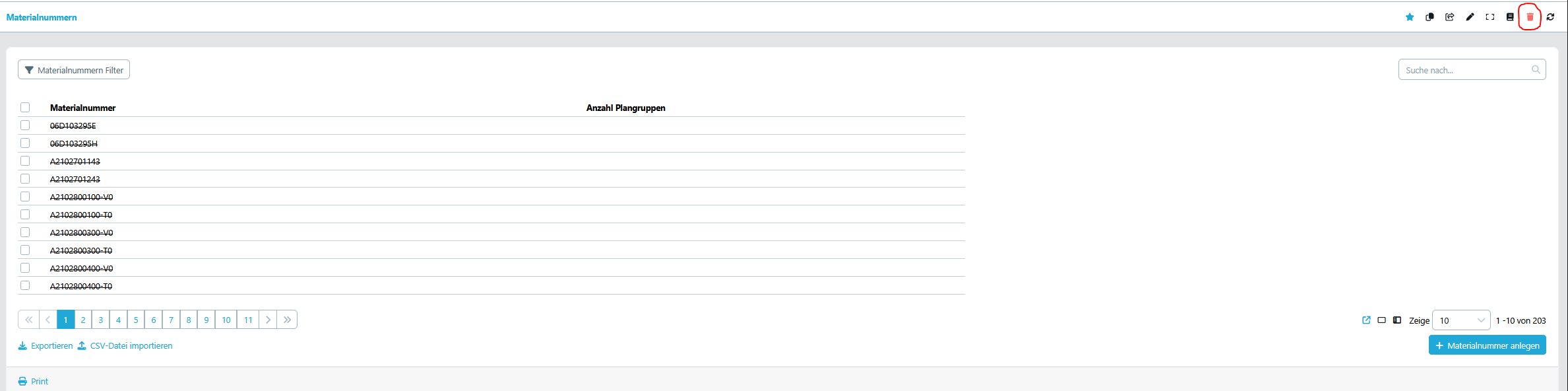
Instead, the object is moved to the trash. This is a soft delete. The deleted object is no longer shown in the normal object list, but it can still be restored later if needed.
You can open the deleted objects view via the trash icon. The table shows the Business Objects that are currently in the trash.
What Happens on Delete#
When a user deletes a Business Object:
- The object disappears from the regular list view.
- The object is marked as deleted and moved to the trash.
- It can be restored as long as it has not been permanently removed.
Depending on your solution setup, related actions can also be triggered, for example notifications, flows, or custom business logic.
Restore from Trash#
Objects in the trash can be restored. After restoration, they become visible again in the normal Business Object lists and can be used like before.
To restore a deleted Business Object, open the trash view, select the object in the table, and trigger the restore action.
Restoring is helpful if an object was deleted by mistake or if it is needed again for an active process.
Permanent Deletion#
Permanent deletion is different from the normal delete action. A hard delete removes the object from the trash so that it can no longer be restored.
Use permanent deletion carefully, especially if the object is still referenced by reports, automations, integrations, or other Business Objects.
Search and Filter#
Business Objects can usually be searched and filtered to narrow down large datasets.
- Use Filters to build property-based queries.
- Use Views to define which fields are visible in lists and detail screens.
Available Actions#
Business Objects can expose context-specific Actions, such as:
- Starting a Flow.
- Opening an internal screen.
- Opening an external URL.
- Passing object values as parameters.
Actions help users move directly from data to process execution.
Access Control#
Access to Business Objects can be restricted per object and per Business Model.
See Access Rights for details on how role permissions and object-level access work together.
Duplication#
The process creates a new object/s (having new uuid) with the same state and no history. The behavior of the relationships is as follows:
- ONE_TO_ONE is preserved and will still point to the original object (the original object which was duplicated).
- ONE_TO_MANY is not preserved. Each such relationship will be set to null for the duplicate.
- MANY_TO_ONE is preserved and will still point to the original object (the original object which was duplicated).
- MANY_TO_MANY - TBD
To modify the duplicated objects according to your requirements - please use batch edit or edit the specific object.
An illustrative example:
A brief video instruction:
Related Topics#
Views#
See Views
Filters#
See Filters
Actions#
See Actions
Access Rights#
See Access Rights