Paged Templates#
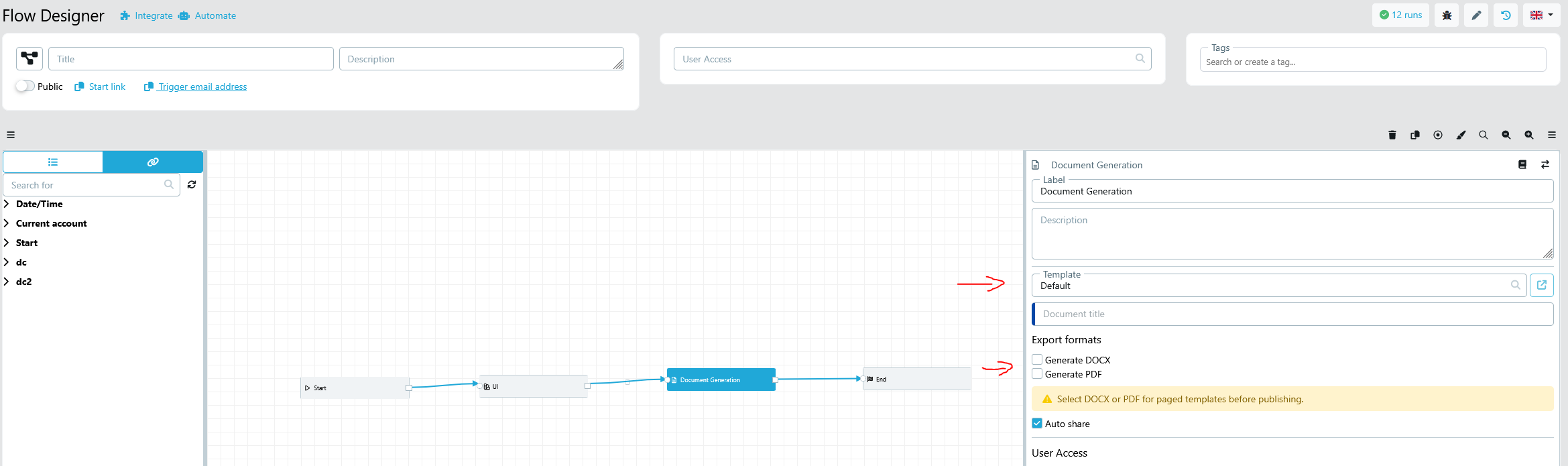
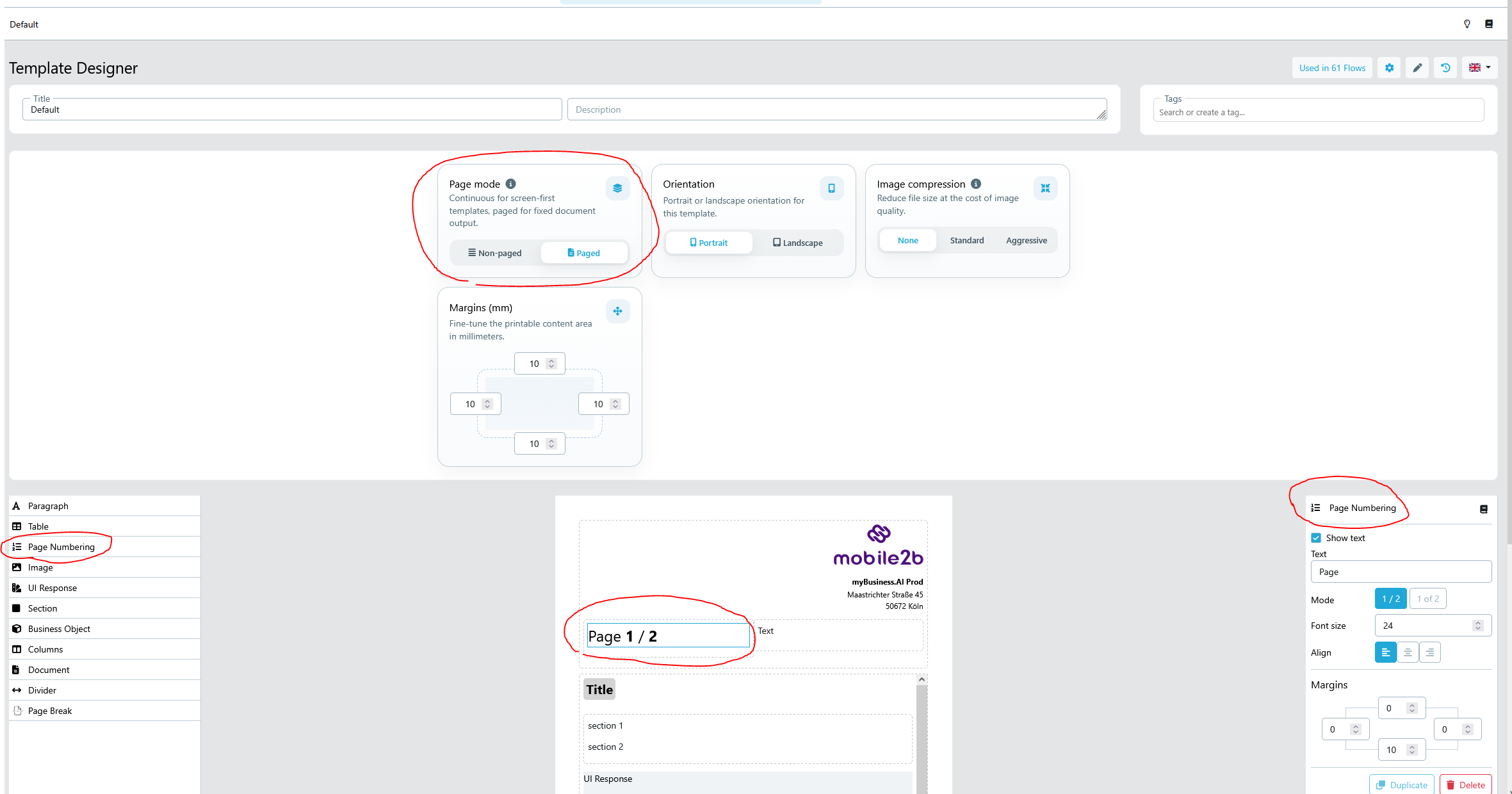
A template can run in two modes: Non-paged and Paged. You switch between them using the Page mode setting at the top of the Template Designer.
What is the difference?#
| Non-paged | Paged | |
|---|---|---|
| Layout | Continuous, endless scroll | Fixed pages with defined margins |
| PDF generation | Browser print (Puppeteer) | Backend pipeline (DOCX / PDF) |
| Page breaks | Not supported | Supported |
| Page Numbering | Not supported | Supported |
| Chart element | Supported | Not supported |
| DOCX / PDF export from Flow | Not available | Available |
Non-paged is the default. The document renders as a continuous, scrollable page in the browser — content flows from top to bottom without any fixed page boundaries. When a PDF is needed, the browser itself prints the page (using Puppeteer in the background).
Paged switches to a fixed-page layout: each page has a defined size, margins, and breaks. The document is generated entirely on the backend and exported directly as a DOCX or PDF file — think inspection reports, certificates, or sign-off sheets.
Paged-only elements#
When Paged mode is active, one additional element becomes available in the Template Designer:
- Page Numbering — displays the current page number and total page count (e.g.
Page 1 / 2). You can configure the text prefix, the separator style, the font size, and the alignment.
Page Break elements are available in both Non-paged and Paged templates.
Paged-only settings#
- Image compression — Reduce file size at the cost of image quality (None / Standard / Aggressive).
Exporting from the Flow Designer#
Once a template is in Paged mode, the Document Generation node shows extra export options: Generate DOCX and Generate PDF. At least one must be selected before the flow can be published. See Document Generation node for details.