Business Object Selection#
The Business Object Selection element allows users to select a Business Object from a selected Business Model.
Settings#
- Required: If enabled, the user cannot complete the UI without selecting a Business Object.
- Disabled: If enabled, the user cannot update the selection. The value should be set from the flow.
- Show label: Shows the element label above the selection field.
- Selection options: Allows selection by Search, by Scan, or both. The Scan option is available when the selected Business Model has a Scan property.
- Show as: Controls how the selected Business Object is displayed after selection. Link shows only the object name; Preview shows the object card.
- Display style: Controls how searchable Business Objects are presented before selection.
- Button width: Available when Display style is set to Buttons. Choose Adjust to label for dynamic button widths or Equal for equal-width buttons.
- Page size: Controls how many Business Objects load per page when searching or using Load more. Defaults to 10.
Display Style#
Business Object Selection supports the following display styles for the searchable choices:
- Dropdown: Shows Business Objects in a searchable dropdown. This is the default display style.
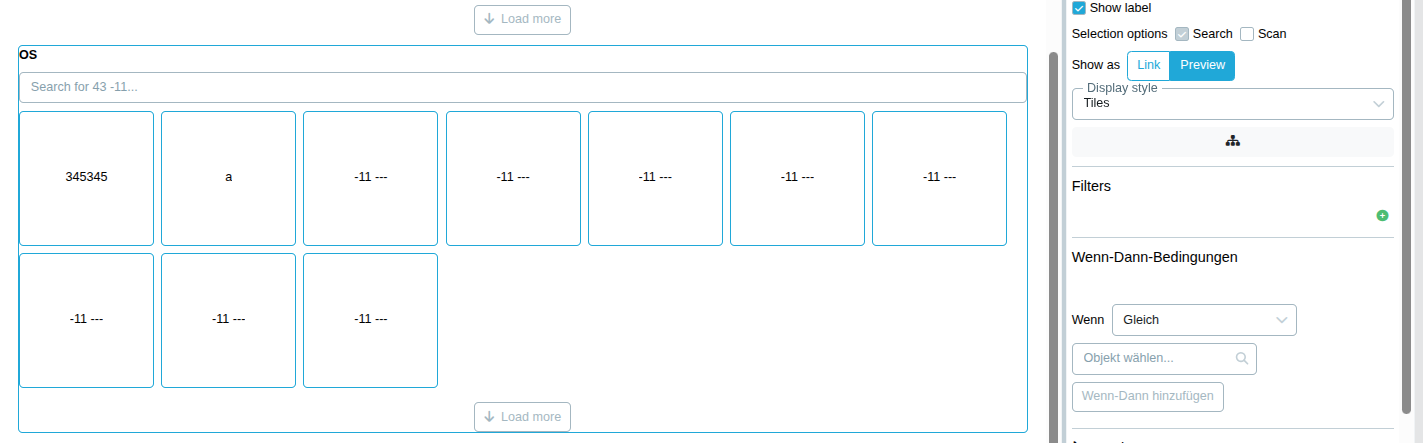
- Tiles: Shows Business Objects as selectable tiles.
- Buttons: Shows Business Objects as selectable buttons.
Tiles and Buttons load the first page of Business Objects automatically (see Page size above; 10 by default). Use Load more to append another page. The search field filters the available objects. Clicking the currently selected tile or button clears the selection again, which allows a default value to be removed by the user.
For Tiles and Buttons, each option uses the Business Object display label with the optional display icon. Long labels are cropped so that the tile or button keeps a clean layout.
Tiles#
Filters#
You can filter by one or multiple properties.
For example, if you want to achieve a hierarchy such as Country => City => Factory, add three Business Object Selection elements. The second element (City) should have a filter for Country and the third element (Factory) should have a filter for City.
You can also click Add related business object selection to automatically add another element and prefill the filters.
Conditions#
There are six condition types: Equals, Not equals, Property equals, Property not equals, Property contains, and Property does not contain.
See UI Designer