Calculation#
The Calculation element automatically computes a numeric result from a formula that references other form elements. The result is read-only and updates in real time as the referenced values change.
Example#
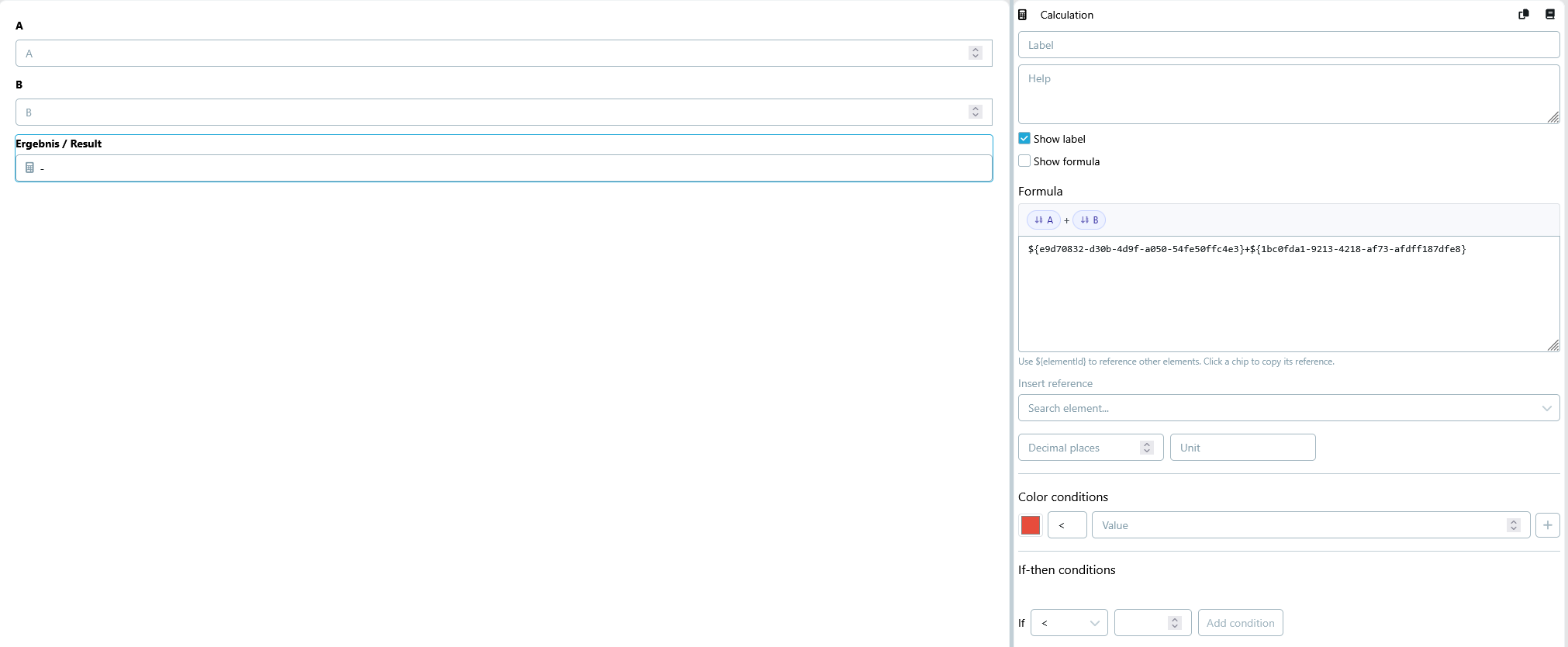
The screenshots below show a simple A + B setup: two Number elements are referenced in the formula, and the Calculation element displays the live result.

Formula#
The formula is a standard math expression that can reference other numeric elements using the ${elementId} placeholder syntax.
Supported operators: +, -, *, /, and parentheses ( ).
Functions#
| Function | Description | Example |
|---|---|---|
MAX(a, b, ...) |
Highest value among arguments | MAX(${id1}, ${id2}, 100) |
MIN(a, b, ...) |
Lowest value among arguments | MIN(${id}, 0) |
AVG(a, b, ...) |
Average of all arguments | AVG(${id1}, ${id2}, 50) |
STD(a, b, ...) |
Population standard deviation (σ) | STD(${id1}, ${id2}, ${id3}) |
Arguments can be element references, literals, or any combination. Functions can also be nested or combined with arithmetic:
14 + MAX(${id1}, ${id2})
MAX(MIN(${id1}, 10), ${id2}) * 1.19
AVG(${id1}, ${id2}) / ${id3}
STD(${id1}, ${id2}, ${id3})
STD(${r1}, ${r2}, ${r3}) / AVG(${r1}, ${r2}, ${r3})
Examples:
| Formula | Description |
|---|---|
${lengthId} * ${widthId} |
Area from two Number elements |
(${toleranceId} / ${nominalId}) * 100 |
Tolerance as percentage of nominal |
${priceId} * ${quantityId} * 1.19 |
Price including 19% VAT |
MAX(${measuredId}, 0) |
Clamp result to minimum 0 |
AVG(${reading1Id}, ${reading2Id}, ${reading3Id}) |
Average of three readings |
Tip: Use the Insert reference dropdown in the element settings to insert
${elementId}tokens without having to type them manually. Each entry shows the element icon and label.Tip: Chips above the formula textarea show each referenced element by name. Click a chip to copy its reference token to the clipboard.
Settings#
| Setting | Description |
|---|---|
| Show label | If checked, the element label is displayed above the result field. |
| Show formula | If checked, a chevron (▾) button appears next to the result at runtime. The end user can click it to expand a panel showing the formula expression — with element IDs replaced by their human-readable labels. If all referenced values are filled in, a resolved line (e.g. = 1 * 22) is shown below the formula. |
| Formula | The math expression using ${elementId} references. Required. |
| Decimal places | If set, the result is rounded and displayed with the specified number of decimal places (e.g. 2 → 3.14). |
| Unit | Optional unit label displayed next to the result (e.g. mm, kg, EUR). |
Color Conditions#
Color conditions allow the result to be highlighted in a specific color depending on its value. Rules are evaluated in order and the first matching rule is applied.
Each rule consists of:
- Color — the color to apply to the result text (hex color picker).
- Operator — one of <, ≤, =, ≠, >, ≥.
- Value — the numeric threshold to compare against.
Example: Add a rule result < 0 → red to signal a negative outcome.
If-then Conditions#
Like other input elements, the Calculation element supports if-then conditions: child elements (labels, alerts, etc.) that are shown or hidden depending on the computed result.
Add a condition with an operator and threshold value. Then drag any UI elements into the drop zone that appears beneath the condition — they will be rendered at runtime only when the condition is met.
Example: Condition result < 10 → show an Alert element warning the user the value is too low.
Grid cell references#
A Calculation element can also reference individual cells inside a Grid element using a three-part dot notation:
${gridId.rowOrAggregate.columnId}
The second segment depends on the grid's row mode:
Fixed rows — direct cell reference#
When the grid uses Fixed rows, each row has a stable ID assigned at design time. Use that row ID as the middle segment to address a specific cell:
${gridId.rowId.columnId}
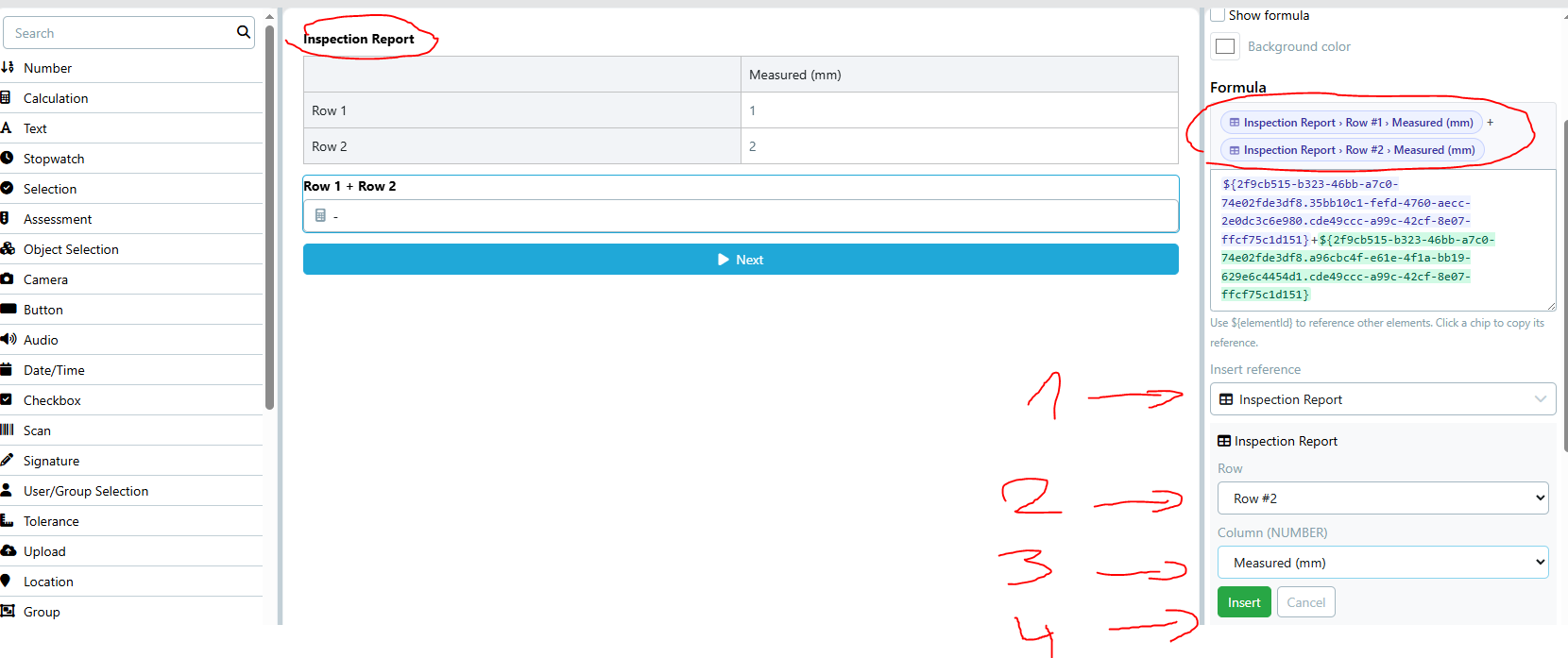
Example: An Inspection Report grid (Fixed rows: Row 1, Row 2) with a Number column Measured (mm). A Calculation element Row 1 + Row 2 sums both rows. The screenshot below shows the picker: select the grid (1), choose the row (2), choose the column (3), and click Insert (4). The formula chips show each reference by name with alternating colors.
Dynamic rows — aggregate functions#
When the grid uses Dynamic rows, the user adds rows at runtime and their IDs are not known at design time. Instead, use one of the built-in aggregate keywords as the middle segment:
| Keyword | Result |
|---|---|
SUM |
Sum of all non-empty cells in the column |
AVG |
Average of all non-empty cells |
MAX |
Largest value |
MIN |
Smallest value |
COUNT |
Number of non-empty cells |
${gridId.SUM.columnId}
${gridId.AVG.columnId}
Example: Sum all values in the Quantity column of a dynamic grid:
${itemsGrid.SUM.quantity} * ${priceId}
Note: Only columns of type Number can be targeted by grid cell references. Static Text, Checkbox, Date, and Text columns are excluded from the reference picker.
Tip: Use the Insert reference dropdown in the element settings to build grid references without typing them manually. Selecting a Grid element opens a sub-picker for the row / aggregate and the column.
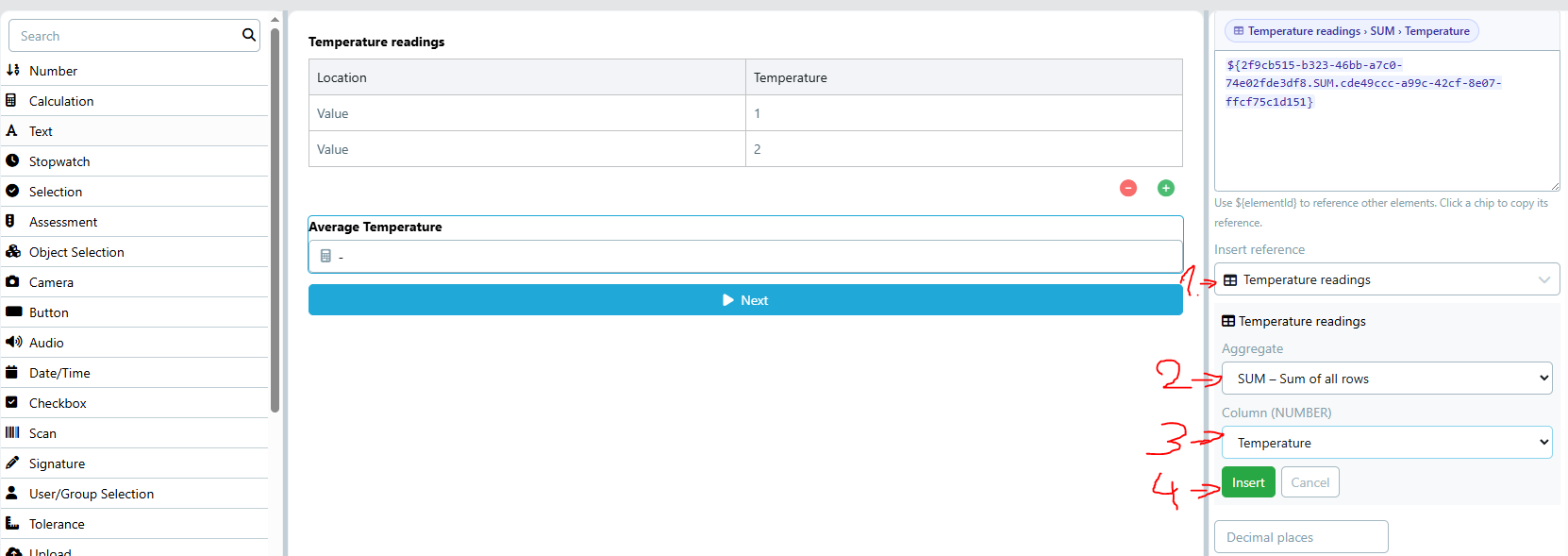
Example — dynamic grid aggregate: A Temperature Readings grid (Dynamic rows) with a Number column Temperature. A Calculation element Average Temperature uses SUM to total all entered values. The screenshot below shows the full workflow: select the grid (1), choose the aggregate (2), choose the column (3), and click Insert (4).
Referenceable element types#
The following element types can be referenced inside a formula:
- Number
- Tolerance
- Calculation (chain calculations — result of one Calculation used in another)
- Grid (via dot-notation cell references — see Grid cell references above)
Notes#
- The Calculation element value is read-only at runtime — it cannot be manually edited by the user.
- If any referenced element has no value yet, the result displays as
–. - The formula is evaluated client-side in real time; no server round-trip is required.
- Works correctly inside Repeat Groups — each repetition resolves its own sibling values independently.
See also UI Designer