Flow Documentation#
 Creator
Flow Documentation writes a readable description of a Flow: what the process is for, how it starts, which data it touches, how it branches, and which documents and notifications it produces. It is meant for the people who do not build Flows — colleagues being onboarded, a team taking a process over, or an auditor who needs to see what actually happens.
The description is written from the Flow itself. Every id inside the Flow is resolved first, so the text names the form field, the Business Model property, the selection option and the responsible group instead of the identifiers they are stored under.
Writing the documentation#
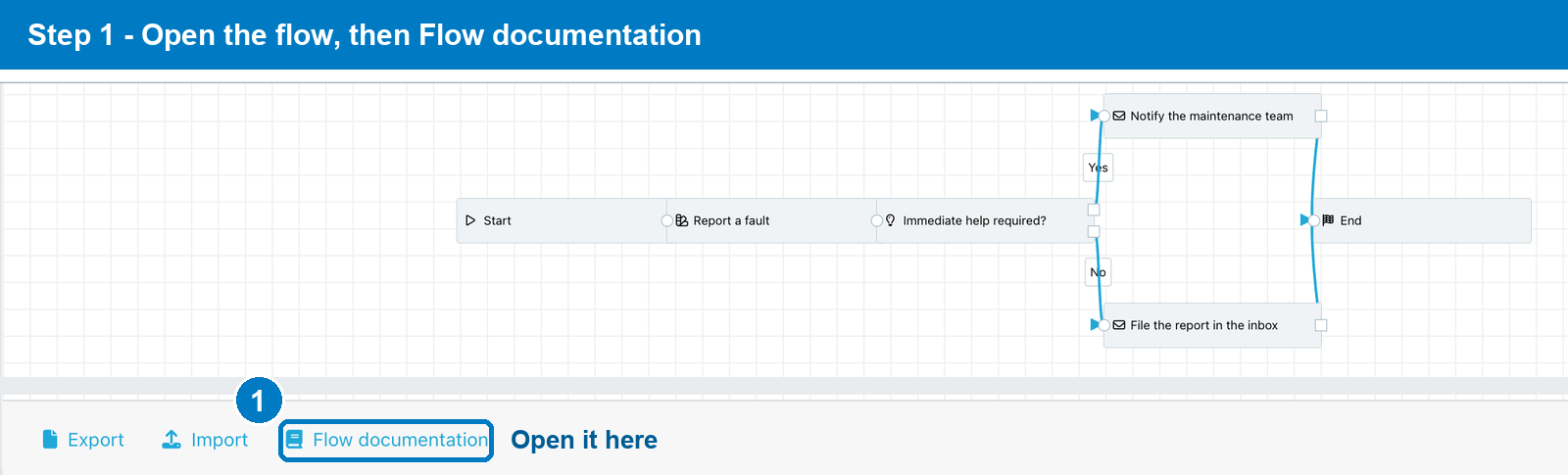
Open the Flow in the Flow Designer and click Flow documentation at the bottom of the page, next to Export and Import.
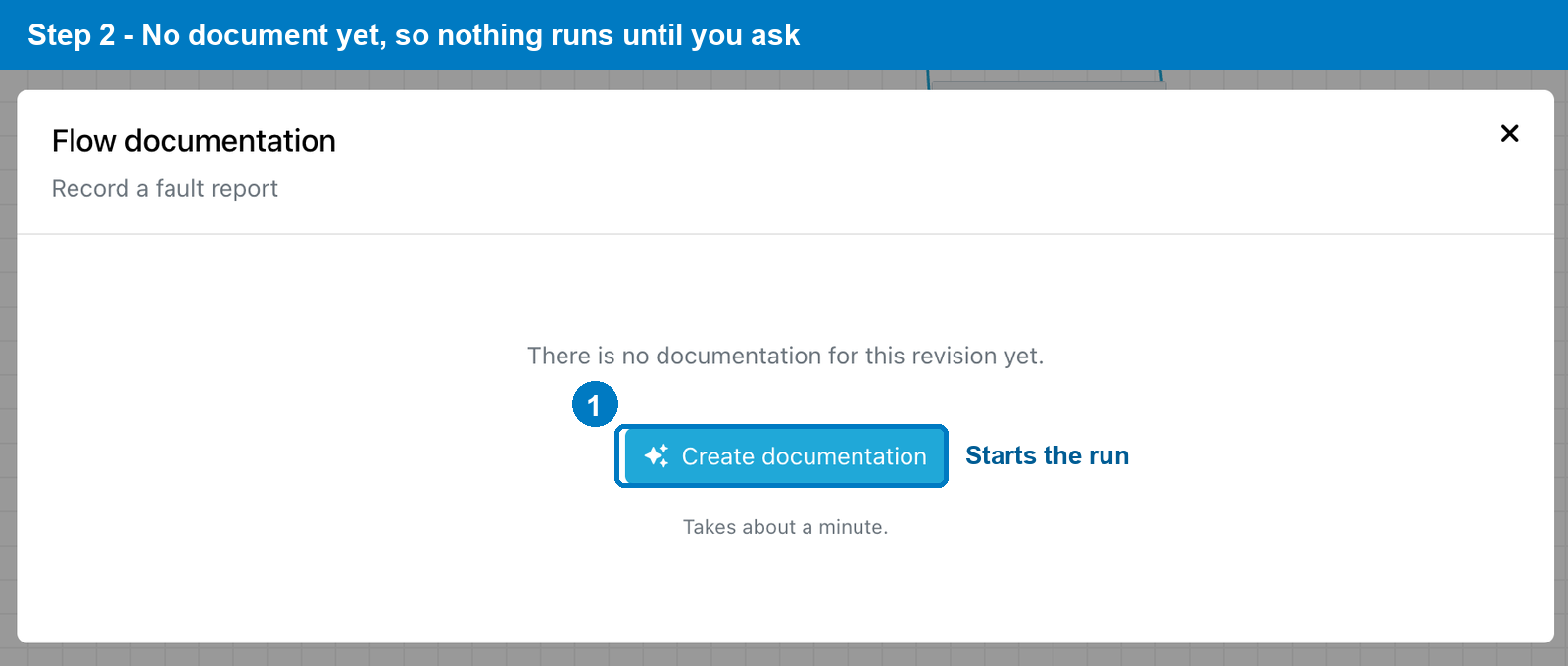
The dialog opens on the revision you have in front of you. Nothing is written until you ask for it — a run takes about a minute and is charged to your AI integration, so it never starts on its own.
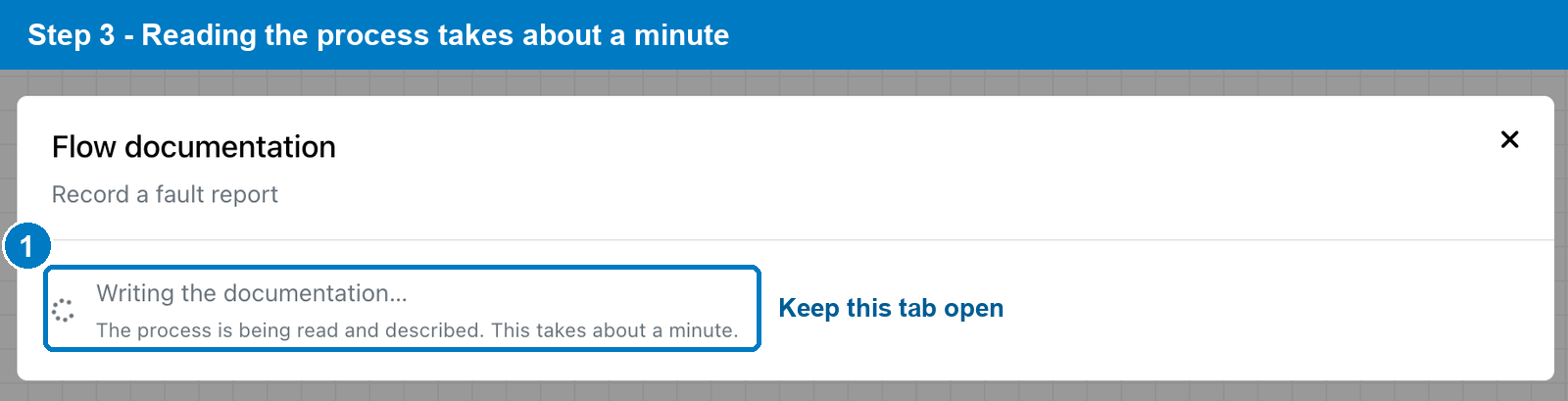
While the documentation is being written, the dialog shows its progress. You can close it and keep working; the run continues and the result is stored when it finishes.
Note
The run lives in the browser tab. Reloading the page or closing the tab ends it, and the text is only stored once it is complete.
The result#
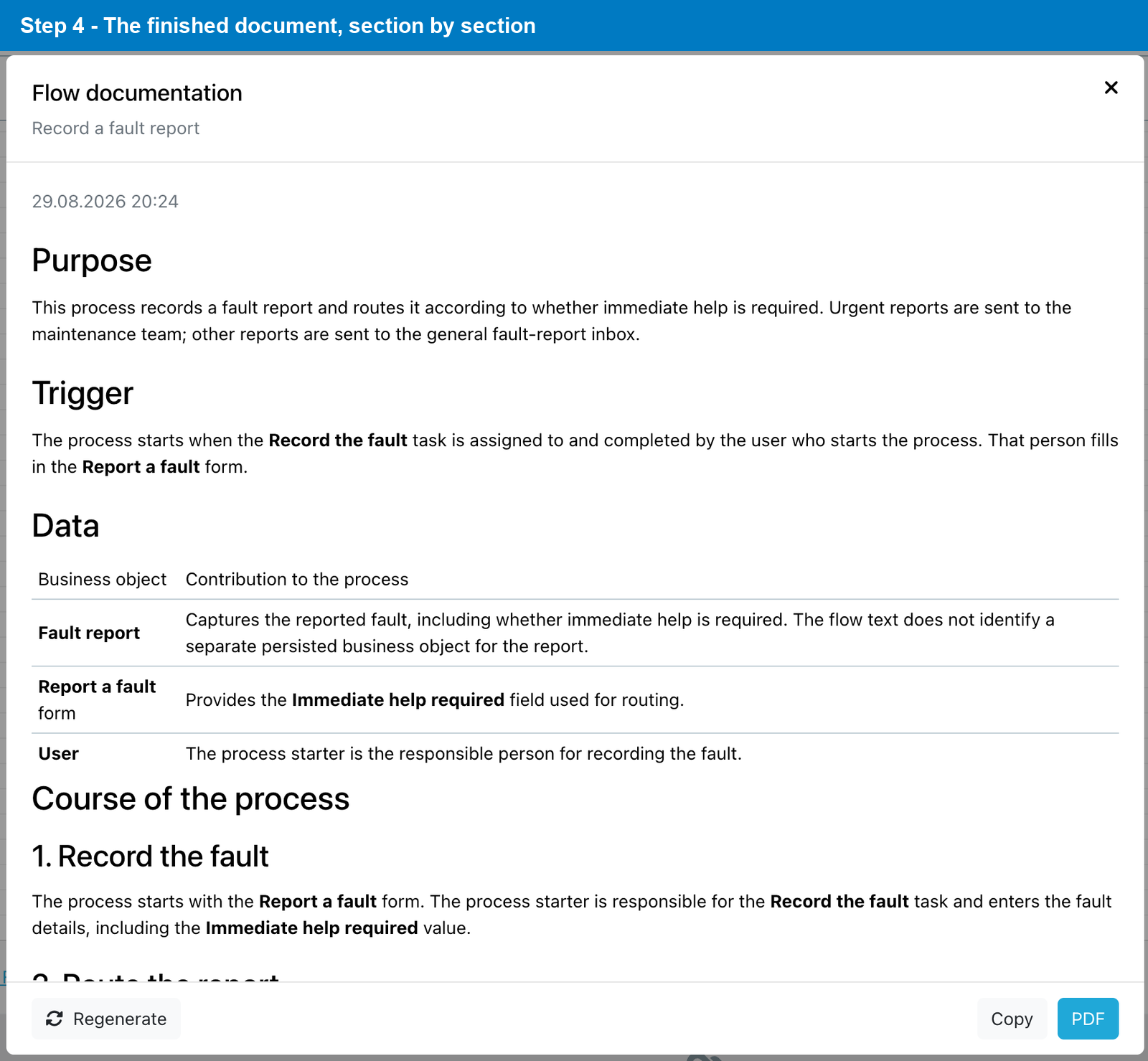
The document covers:
| Section | What it contains |
|---|---|
| Purpose | What the process achieves |
| Trigger | How the process starts, including every entry path |
| Data | The Business Objects involved and what each contributes |
| Course of the process | The steps in order, grouped into phases |
| Decision logic | Every branch: what is checked, and what follows from each outcome |
| Documents and notifications | What is generated or sent, and when |
| Status changes | How each object's status progresses |
| Possible defects | Things that look wrong, each with its effect |
| Maintenance notes | Things that cost time when the Flow is changed |
The last two sections are worth reading even when you know the process. They report duplicated paths that have to be edited in two places, steps sharing a name, document output that is switched off, and values that do not fit their field — each with what it actually causes, or a plain statement that the effect cannot be determined from the Flow.
Reopening, regenerating and saving#

- The documentation is stored per revision. Opening the dialog again shows the stored text immediately, without writing it a second time.
- If the Flow has changed since, the dialog marks the document as written for an earlier revision.
- Regenerate replaces the stored text and asks before doing so.
- Copy puts the Markdown on the clipboard.
- PDF opens your browser's print dialog on the document alone, so you can save or print it.
Language#
The document is written in the language your interface is set to, whatever language the Flow's own labels use — an English interface describes a German Flow in English. Names taken from the Flow are quoted as they are, so an email subject or a status option keeps its original wording.
Each language is stored separately. Switching the interface and opening the dialog again offers to write the document in the new language; it does not replace the one already stored.
Which AI model is used#
The documentation is written by the AI integration configured for your account under System Integration. When your account brings its own integration, the dialog names it — provider and model — above the button, so you can see where the request goes before you start it. With the platform's own model, nothing is shown.
Sub-processes#
A Flow that calls another Flow names it but does not describe it. Sub-processes are documented separately: open the sub-process in the Flow Designer and write its documentation there.