Batch Editing#
Batch Editing lets you apply the same change to many Business Objects at once — for example, moving fifty records to a new status or reassigning an owner — without opening each one individually.
How to start a batch edit#
- Open a List View of the model you want to edit.
- Select the records using the row checkboxes (or select all).
- Choose Batch edit from the actions bar.
- Pick the properties to change and set their new values.
- Confirm to start the job.
Background processing with live progress#
Batch edits run as a background job. The selection is processed record by record on the server, so a large batch no longer blocks the interface or times out. A progress indicator shows how far the job has advanced and how many records remain.
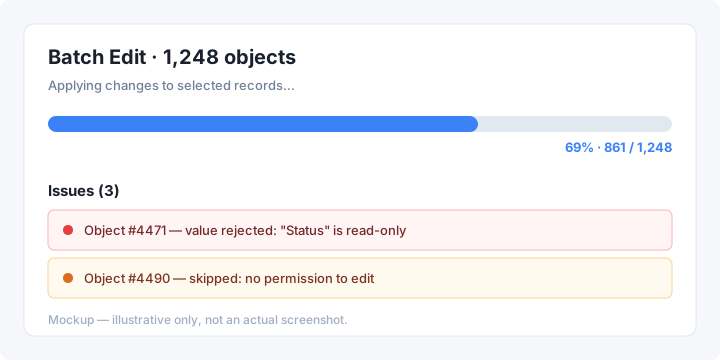
This is the behavior you can rely on for large selections — earlier, editing a high number of records at once could fail. The job now scales to large batches and reports its status as it goes.
Per-record issue reporting#
Not every record can always be updated — a property may be read-only, a value may fail validation, or your role may lack permission for a specific object. Instead of failing the whole batch, the job continues and collects these problems into an issues list, so you can see exactly which records were skipped and why.
| Outcome | Meaning |
|---|---|
| Updated | The change was applied successfully. |
| Skipped | The record was left unchanged (e.g. insufficient permission). |
| Rejected | The new value was not accepted (e.g. read-only or invalid). |
Related topics#
- Business Objects
- List View
- Duplication — duplicate first, then batch edit the copies
- Access Rights