Document Generation#
The Document Generation node fills a template with data from your flow and saves the result as a document in the Document Center. The template is created in the Template Designer.
Settings:
- Show/Hide elements: Choose which form elements from a linked UI response should appear in the document.
- Ignore empty: When enabled, variables that have no value are silently skipped instead of causing an error.
Exporting as DOCX or PDF#
This requires the template to be set to Paged mode. See Paged Templates for a full overview of what Paged mode is and how to enable it.
When the template is in Paged mode, you can choose to export the document as a Word file (DOCX), a PDF, or both — simply tick the corresponding checkbox in the node settings.
Protecting a PDF with a Password#
If you export as PDF, you can optionally lock it with a password. Enter the password in the PDF password field that appears below the PDF checkbox. Anyone who receives the file will need that password to open it.
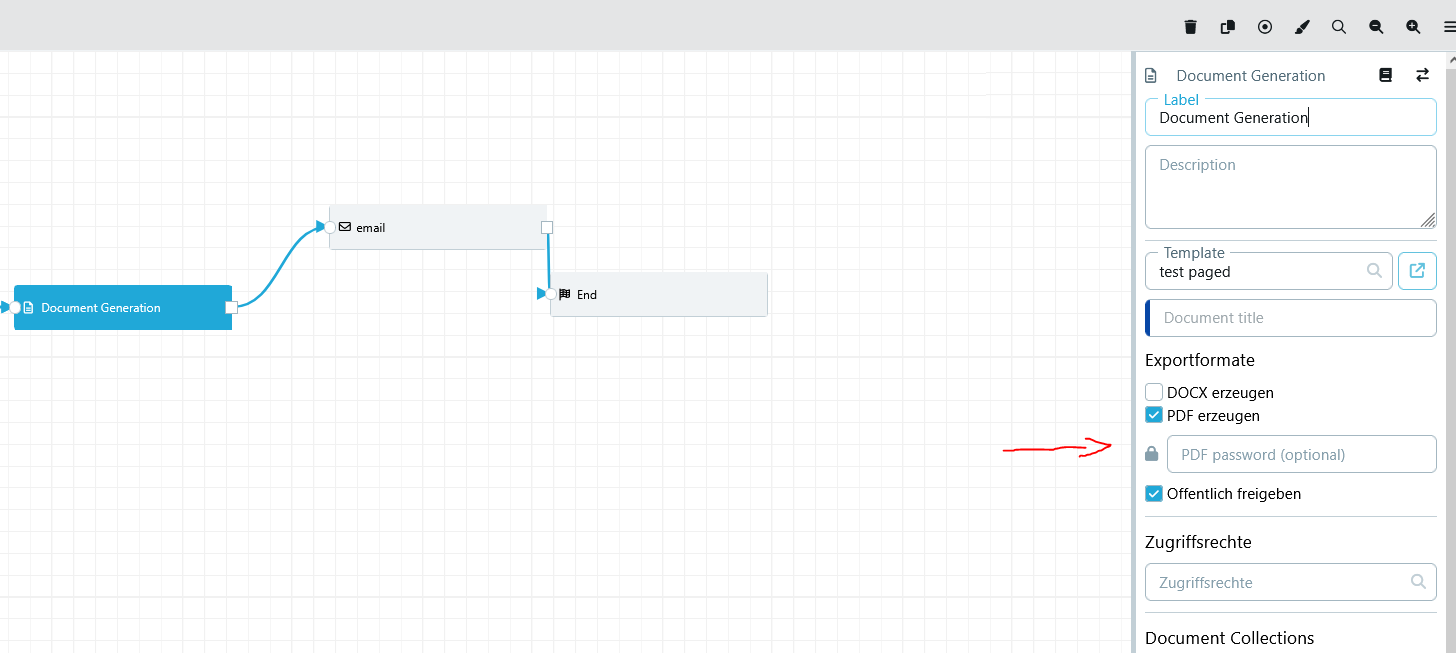
The password only applies to the PDF. A DOCX generated by the same node is not affected.
Auto-Share#
You can automatically share the generated document with people outside Mobile2b via a public link. When enabled, the public link becomes available as a variable you can use in later flow steps — for example to send it by email. For more details see Document Sharing.