📄 Document Viewer#
The Document Viewer element allows users to display and interact with documents directly within the application.
🧭 Overview#
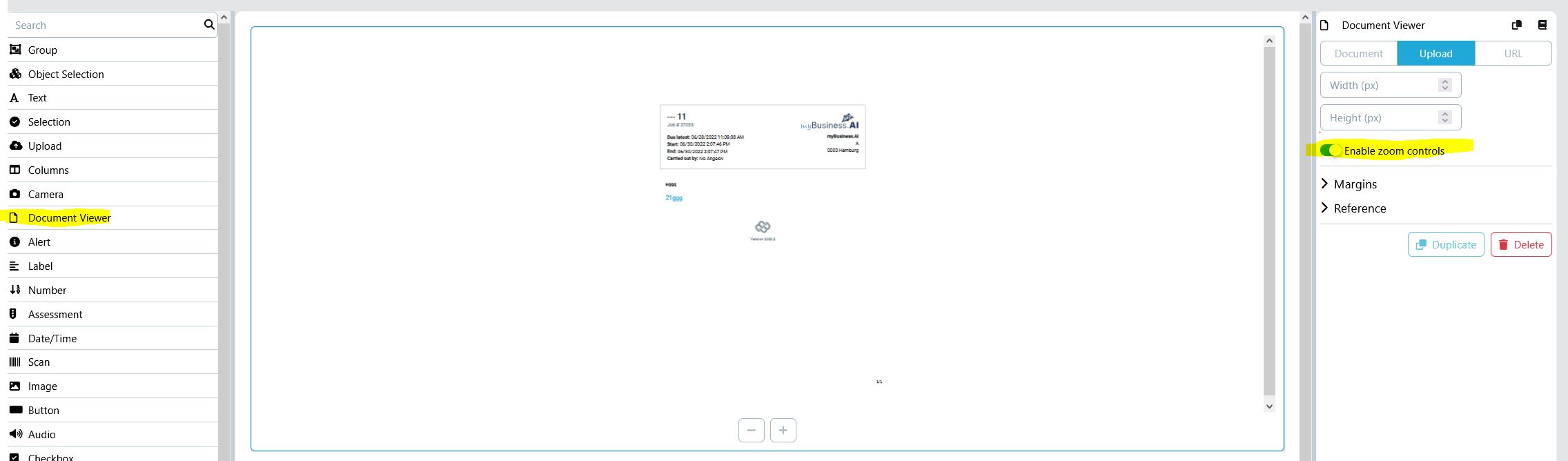
The Document Viewer provides multiple ways to load and preview documents: - Select a document from internal storage - Upload a document from the user’s device - Provide an external URL to preview a remote document
Supported document types include PDF, images, and other common file formats.
⚙️ Features#
🗂️ Internal Document Selection#
- Users can browse and select an existing document from internal storage.
- Once selected, the document is automatically displayed as a preview.
- PDF files are fully interactive — users can scroll, zoom, and navigate pages.
📤 Upload Document#
- Users can upload a local file to view it immediately in the preview pane.
- Uploaded files are not automatically stored unless explicitly saved by the user or flow logic.
🌐 External URL#
- The viewer can load and preview documents directly from an external URL.
- Useful for showing files stored in remote repositories or cloud services.
🔍 Zoom Controls#
- When the “Enable Zoom Controls” option is activated:
- Two buttons appear in the viewer: ➖ Zoom Out and ➕ Zoom In.
- Users can adjust the zoom level interactively for better readability.
- Works especially well for detailed PDFs or image-based documents.
🧩 Configuration Options#
| Option | Description |
|---|---|
| Source Type | Select how the document is provided (Internal, Upload, or External URL). |
| Enable Zoom Controls | Toggles the plus/minus zoom buttons for the viewer. |
| Preview Enabled | Determines whether the document is shown in an embedded preview frame. |
🧠 Notes#
- PDF previews use a built-in interactive PDF viewer.
- Large files may take longer to load depending on size and network speed.
- If an unsupported file type is selected, a fallback message is shown instead of a preview.
🧪 Example Use Case#
- A user uploads a PDF invoice.
- The Document Viewer displays it directly in the UI.
- The user uses the Zoom In button to read small print.
- Alternatively, the user selects an already uploaded document from internal storage.
- The selected document preview updates instantly.